
 English
 中文
 Malay
JK6 Login – Access Your Account
Access your account through the JK6 Login page using your registered mobile number and password. The login form is available through web browsers on mobile devices and desktop computers, allowing members to sign in using their existing account details. If you have forgotten your password, you can follow the SMS verification process to create a new one or contact customer service for assistance.
How to Complete JK6 Login
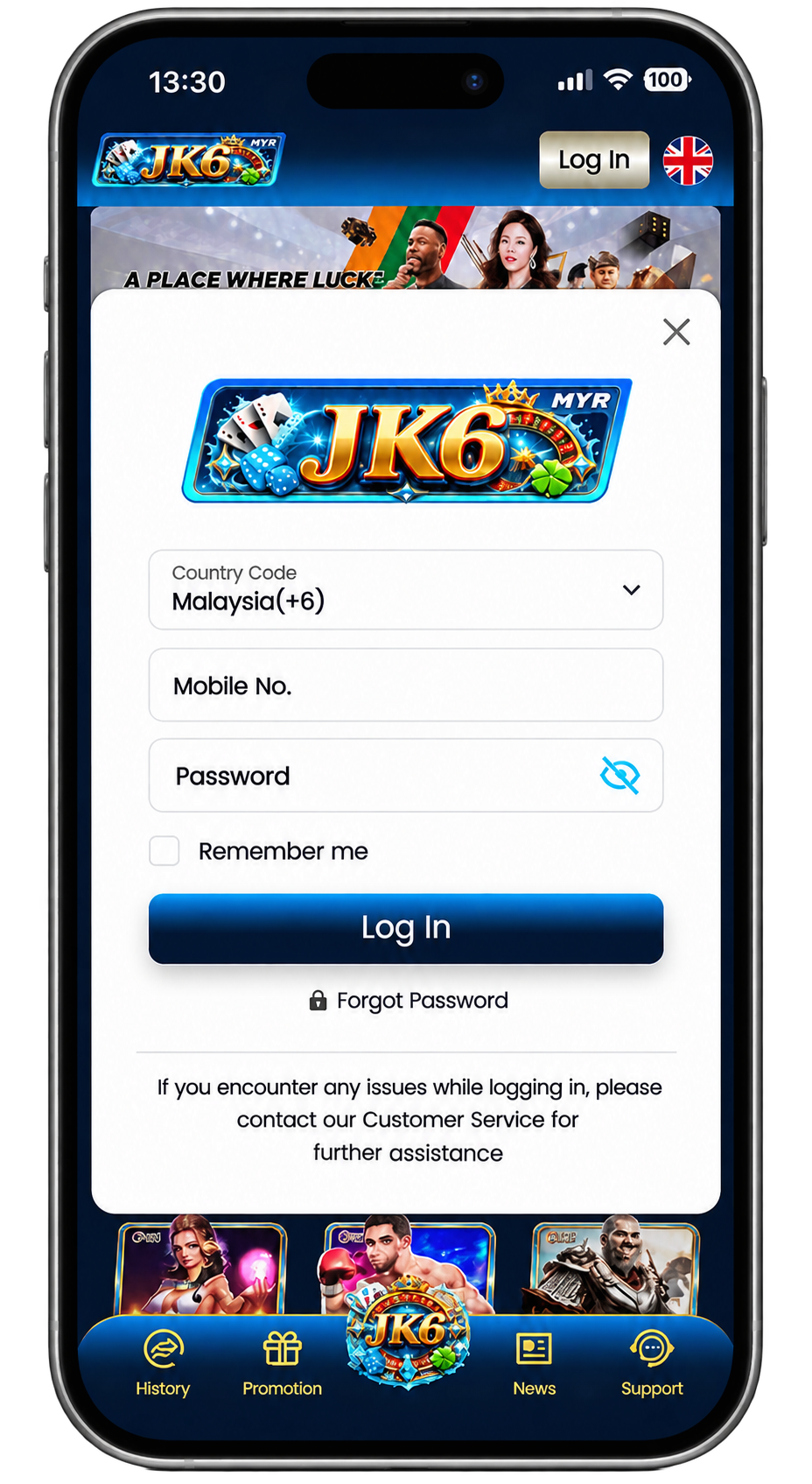
Signing in requires your registered mobile number and account password. Follow these steps to access your account through the login form.
Step 1: Open the Login Page
Visit the JK6 website and select Login to open the sign-in form. You will see fields for your country code, mobile number, and password, along with the Remember Me option.
Step 2: Select Your Country Code
Choose the country code associated with your registered mobile number. The login form displays Malaysia (+6) as the default selection.
Step 3: Enter Your Mobile Number
Type your registered mobile number into the Mobile No. field. Check that the number is correct before continuing.
Step 4: Enter Your Password
Enter your account password in the Password field. If necessary, use the visibility icon to review the characters you have entered.
Step 5: Choose Remember Me (Optional)
Select the Remember Me checkbox if you want the website to remember your login information. For security reasons, avoid using this option on shared or public devices.
Step 6: Click Log In
Once your details are entered, click Log In to submit the form. If your credentials are valid, you can access your account.
Access Your Account on Mobile and Desktop
The web login form can be accessed using a compatible browser on different devices. Whether you prefer a smartphone or computer, the sign-in process follows the same basic steps.
Mobile Browser Access
Open the website using your mobile browser and navigate to the login form. Enter your registered mobile number and password, then tap Log In. This browser-based method is commonly referred to as H5 access.
Desktop Browser Access
If you prefer using a computer, open the website through your desktop browser. Navigate to the login page, enter your account credentials, and select Log In to continue.
Using Your Existing Account
You can use the same registered mobile number and password when accessing the login form from different devices. Make sure your details are entered correctly and avoid saving your password on computers used by other people.
How to Reset Your Password
If you cannot remember your password, use the Forgot Password option available below the login form. The recovery page provides an SMS TAC verification process that allows you to request a password reset.
Step 1: Select Forgot Password
Click Forgot Password below the Log In button to open the password recovery page.
Step 2: Enter Your Registered Mobile Number
Select the appropriate country code and enter the mobile number linked to your account. The number must contain digits only and should not include the country code in the Mobile No. field.
Step 3: Choose SMS Verification
Locate the verification method dropdown and select SMS to receive a Transaction Authorization Code (TAC).
Step 4: Request Your Verification Code
Click Get TAC to request the code. Once you receive the SMS, enter the verification code into the TAC Number field.
Step 5: Create a New Password
Enter your new password in the Password field. It must contain at least six characters, including letters and digits. Special characters are also allowed.
Step 6: Confirm Your Password
Re-enter the same password in the confirmation field. Check that both entries match before proceeding.
Step 7: Submit Your Request
After completing the required information, click Submit. Once your password has been successfully reset, return to the login page and use your new credentials to sign in.
Step 8: Contact Customer Service if Needed
If you experience difficulties with the recovery process, select the WhatsApp button to contact customer service for further assistance.
Common Login Problems and Solutions
Account access problems can sometimes be caused by incorrect information or incomplete password verification. Review the following common situations before contacting customer support.
Incorrect Mobile Number
Check that your country code and registered mobile number are correct. A typing error may prevent the system from recognizing your account details.
Password Not Accepted
Make sure you have entered your password correctly. Use the visibility icon to check your entry. If you cannot remember the password, follow the recovery process to create a new one.
Verification Code Not Received
Confirm that your registered mobile number is correct and that your phone can receive SMS messages. If the TAC does not arrive, contact customer service for assistance.
Unable to Reset Password
Ensure that all required fields are completed, including the verification code, new password, and password confirmation. Your new password must also meet the minimum requirements displayed on the recovery page.
Still Unable to Sign In
If you continue experiencing difficulties after checking your account information, contact customer service. The support team can provide further guidance on account access issues.
Frequently Asked Questions
Below are answers to common questions about account access, mobile sign-in, password recovery, and customer support.
1. How do I log in to my JK6 account?
Open the login page, select your country code, and enter your registered mobile number and password. Click Log In to access your account.
2. Can I sign in using my mobile phone?
Yes. You can access the login form through a compatible mobile web browser. Enter your account details and tap Log In to continue.
3. Can I use JK6 on a desktop computer?
The web login page can be opened through a desktop browser. Use your registered mobile number and password to sign in.
4. What is H5 login?
H5 refers to a mobile-friendly web interface that can be accessed through a smartphone browser. It allows users to open the login page without using a desktop computer.
5. What should I do if I forget my password?
Select Forgot Password on the login page. Enter your registered mobile number, request an SMS TAC, and follow the instructions to set a new password.
6. How do I receive a TAC verification code?
Enter your registered mobile number on the recovery page, select SMS as the verification method, and click Get TAC. The code will be sent to your mobile number.
7. What are the password requirements?
Your new password must contain at least six characters, including letters and digits. Special characters are permitted.
8. What does Remember Me mean?
Remember Me is an optional setting on the login form that allows your login information to be remembered. Avoid selecting it when using shared or public computers.
9. Why am I unable to access my account?
Check that your registered mobile number, country code, and password are correct. If you have forgotten your password, use the recovery option. Contact customer service if the issue continues.
10. How can I contact customer service?
The login page provides guidance for contacting customer service when you experience account access problems. You can also use the WhatsApp button on the password recovery page to request assistance.
Ready to Sign In?
Enter your registered mobile number and password to access your account. If you need help, use the password recovery option or contact customer service for assistance.